The Uttar Pradesh government provides the AgriStack Portal as a digital platform for accessing agriculture-related services and information. The portal brings several facilities together, including a public dashboard, user login, village directory, grievance details, Jansamarth KCC status checking and land record synchronization reports.
Users can access different sections directly from the homepage. The website also provides separate login options for farmers and officials, along with a dedicated CSC login facility. Users can check enrollment-related information, search village LGD codes and view other available portal records without navigating through multiple websites.
This guide explains the structure and services of the official UP AgriStack Portal. It focuses on how the website works, what its different menus offer and how users can access its online facilities. For the detailed Farmer ID registration process, read our separate guide to Farmer Registry UP.
UP AgriStack Portal: Key Highlights
UP AgriStack Portal Highlights | |
|---|---|
| Portal Name | Uttar Pradesh AgriStack Portal |
| Portal Platform | AgriStack |
| State | Uttar Pradesh |
| Government | Government of Uttar Pradesh |
| Main Purpose | Provide access to digital agriculture-related services and information |
| Login Options | Farmer, Official and CSC |
| Public Dashboard | Available |
| Village Directory | Available |
| Grievance Details | Available |
| Land Record Reports | Available through RoR Sync Dashboard |
| Official Website | upfr.agristack.gov.in |
| Helpline Number | 0522 2317003 |
What Is the UP AgriStack Portal?
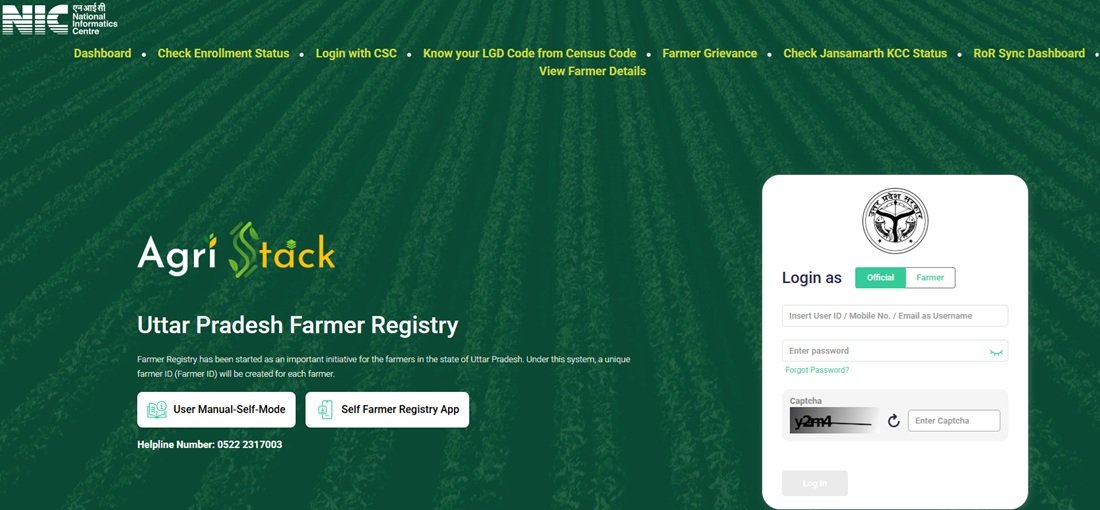
The UP AgriStack Portal is an online platform that provides access to different digital agriculture-related facilities in Uttar Pradesh. The website displays the AgriStack and Uttar Pradesh Farmer Registry branding and brings several public and login-based services under one interface.
Users can open the homepage to access the dashboard, check enrollment status, find village LGD codes, view grievance-related records and check Jansamarth KCC status. The portal also provides a RoR Sync Dashboard that displays land record synchronization information and related reports.
The portal serves different users through separate access options. Farmers can use their accounts to access available personal services, officials have a separate login option and CSC users can access the dedicated CSC facility.
How to Open the Official UP AgriStack Website
Users should visit the official website to access the portal’s services. They do not need to search for individual service pages through third-party websites.
- Open a web browser on your mobile phone or computer.
- Visit the official UP AgriStack Portal.
- Wait for the homepage to load.
- Review the available menu options.
- Select the service you want to use.
The homepage displays the portal branding, navigation menu, login section and links to the available facilities. Users can also access the user manual and Android application link from the website.
UP AgriStack Portal Homepage: All Main Menu Options
The homepage provides direct access to several important services. Users can select a menu option according to their requirement instead of opening every section individually.
| Menu Option | Purpose | Direct Link |
|---|---|---|
| Dashboard | Displays enrollment-related statistics and district-level information. | Open Dashboard |
| Check Enrollment Status | Provides status search through Aadhaar Number or Farmer ID. | Check Status |
| Login with CSC | Provides a separate login option for CSC users. | Open Portal |
| Know Your LGD Code from Census Code | Helps users search village LGD codes. | Open Village Directory |
| Farmer Grievance | Displays grievance-related records with location filters. | View Grievance Details |
| Check Jansamarth KCC Status | Provides a facility to check Jansamarth KCC status. | Check KCC Status |
| RoR Sync Dashboard | Displays land record synchronization indicators and reports. | Open RoR Dashboard |
| View Farmer Details | Provides an Aadhaar-based search facility for farmer details. | View Details |
UP AgriStack Login: Farmer, Official and CSC Options
The portal provides different login options according to the user’s role. The homepage displays Farmer and Official login choices, while a separate Login with CSC option appears in the main menu.
Farmer Login
Farmers can use the Farmer login option to access their accounts and available services. The login interface provides fields for the registered mobile number, password and CAPTCHA. It also displays Forgot Password and account creation options.
Follow these steps to access the farmer login page:
- Visit the official UP AgriStack website.
- Locate the login section on the homepage.
- Select the Farmer login option.
- Enter the registered mobile number.
- Enter your password.
- Complete the CAPTCHA displayed on the screen.
- Click the Log In or Sign In button to continue.
The Self Mode login interface also provides password and OTP-based sign-in options. Users can follow the login method available on the screen.
Official Login
The homepage also provides an Official login option. Officials can select this option to access the relevant login interface. The portal displays the login fields and verification requirements on the screen.
CSC Login
Common Service Centre users can select the Login with CSC option available in the homepage menu. This facility provides a separate access route for CSC users.
Farmers should use their Farmer login option when accessing their personal accounts. They should not confuse the CSC login facility with the regular farmer login.
Forgot Password and New Account Options
The login interface provides a Forgot Password option for users who cannot remember their password. New users can select the Create New User Account or Self Mode Sign Up option displayed by the portal.
Account creation and the complete enrollment process involve separate steps. For a detailed explanation of account creation, land verification and Farmer ID enrollment, refer to our Farmer Registry UP guide.
UP AgriStack Dashboard: Statistics and Available Information
The public dashboard is one of the main sections of the portal. It displays enrollment-related figures and district-level information for Uttar Pradesh. Users can open the dashboard directly from the homepage.
The dashboard includes the following indicators:
- PM Kisan Beneficiaries
- Total Enrollment Till Yesterday
- Enrollment as a percentage of PM Kisan Beneficiaries
- Approved Farmer IDs
- Farmer ID percentage against PM Kisan beneficiaries
- Enrollment pending Farmer ID generation and approval
- Total Today’s Enrollment
The dashboard also displays information about Enrollment Mode, the top five districts by enrollment and the bottom five districts by enrollment.
Dashboard Data Refresh
The portal displays a notice that dashboard data refreshes every five minutes. This means the figures can change as the system updates its information.
Users should check the live dashboard before quoting any figure in a report or article. A previously recorded screenshot may not represent the latest position.
Dashboard Snapshot
The following figures come from a dashboard snapshot shared for this guide. Its capture date was not available, so treat them only as historical reference figures and not as current statistics.
| Dashboard Indicator | Displayed Figure |
|---|---|
| PM Kisan Beneficiaries | 28,870,495 |
| Total Enrollment Till Yesterday | 25,529,304 |
| Enrollment as % of PM Kisan Beneficiaries | 88.43% |
| Approved Farmer IDs | 25,255,541 |
| FID as % of PM Kisan Beneficiaries | 88.43% |
| Enrollment Pending Farmer ID Generation and Approval | 202 |
| Total Today’s Enrollment | 1,190 |
Important data note: The displayed FID percentage does not mathematically match the approved Farmer ID count and PM Kisan beneficiary count shown in the same snapshot. This table reproduces the displayed figures without changing them. For current information, use the live dashboard.
Click here to open the UP AgriStack Dashboard.
Know Your Village LGD Code Through the Village Directory
The UP AgriStack website provides a Village Directory facility to help users find the LGD code of a village. Users can search through a Census Code or select the district, sub-district and village from the available options.
The page displays the heading Village Directory and provides two search methods:
- By Census Code
- By District / Sub-District / Village
Search by Census Code
- Open the Village Directory page.
- Select the By Census Code option.
- Enter the six-digit Census Code in the search field.
- Click Show Data.
- Review the available village details in the results table.
Search by District, Sub-District and Village
- Open the Village Directory page.
- Select the By District / Sub-District / Village search option.
- Choose the required district.
- Select the relevant sub-district.
- Choose the village from the available list.
- Click Show Data to view the result.
The results table displays these details:
- Census Code
- Village LGD Code
- Village Name
- Sub-District
- District
The page also provides a Reset button. Users can select it to clear the current search and enter different details.
Farmer Grievance Details: Search and View Records
The portal includes a Farmer Grievance Details page. It provides geographical filters that help users view available grievance-related records for a selected location.
The page displays the following filters:
- State/UT
- District
- Taluka
- Village
How to View Grievance Records
- Open the Farmer Grievance Details page.
- Select the required State/UT.
- Choose the district.
- Select the relevant Taluka.
- Choose the village.
- Click the Apply button.
- Review the records displayed by the portal.
The results table can display the following information:
- District
- Taluka
- Village
- Complaint Reference ID
- Survey Number
- Sub Survey Number
- Objection Raised Date
- Reason
- Description
- Status
- Rejected Remarks
- Photos
The records depend on the selected filters and the data available in the portal. If the page displays zero records, it does not necessarily mean that the portal has no grievance records. Users should check their selected location filters.
Note: This page displays grievance-related details and search filters. Do not confuse it with a complaint submission form. The available portal information does not establish a complete online grievance submission process through this page.
Check Jansamarth KCC Status on the UP AgriStack Portal
The portal provides a separate facility called Check Jansamarth KCC Status. Users can open this page from the homepage and search through an Aadhaar Number or Farmer ID.
The page provides two options under the Check Status Against section:
- Aadhaar Number
- Farmer ID
Steps to Access the KCC Status Page
- Visit the Check Jansamarth KCC Status page.
- Select Aadhaar Number or Farmer ID.
- If you select Aadhaar Number, enter the required Aadhaar details.
- Follow the OTP verification instructions displayed on the page.
- Enter the OTP received on the mobile number linked with Aadhaar.
- Complete the verification process to continue.
The portal provides this facility separately from its general enrollment status page. Users should open the Jansamarth KCC option when they specifically want to use this service.
View Farmer Details Through the Portal
The homepage provides a separate View Farmer Details option. This facility allows users to search for farmer details using an Aadhaar Number and complete the verification process.
Steps to Open View Farmer Details
- Open the View Farmer Details page.
- Locate the Search By Farmer Aadhaar Number field.
- Enter the required Aadhaar Number.
- Follow the OTP verification instructions displayed on the page.
- Enter the OTP received on the Aadhaar-linked mobile number.
- Complete the authentication process to proceed.
This facility is different from Check Enrollment Status. Users should select the relevant page according to whether they want to check enrollment progress or view available farmer details.
UP AgriStack RoR Sync Dashboard: Land Record Reports
The portal also provides a RoR Sync Dashboard. This section displays information related to land record synchronization and data operations. It mainly supports administrative and technical monitoring rather than regular farmer account activities.
The dashboard includes filters for District, Sub-District, Village, From Date and To Date. Users with the required access can use these filters to view information for the selected location and period.
Information Displayed on the RoR Sync Dashboard
The dashboard includes several indicators that describe land record synchronization activities:
- Total Districts
- Total Sub-Districts
- Total Villages
- History Data Pulled
- Data Deleted
- Data Inserted
- Actions on SFDB Unified Table
- Incremental Farmer IDs Pushed
- Live Data Pulled
Reports Available on the Dashboard
The supplied dashboard interface lists the following reports:
- Data Pulled: History API vs Live API
- Data Deleted: Breakdown by Reason
- Actions on SFDB Unified Table
- Farmer Transition Matrix: AGRA
- Data Inserted: District Wise Breakdown
- Incremental Farmer IDs Pushed: 30, 15 and 7 Days
The Farmer Transition Matrix displays changes between landholding categories. The district-wise report shows data inserted across different districts. These reports help users understand the information available in the synchronization dashboard.
The page also displays an Admin Login option. Users should not treat the dashboard as a public land registration or land correction form.
Open the UP AgriStack RoR Sync Dashboard.
RoR Sync Dashboard Snapshot
The following figures come from the dashboard information shared for this guide. The snapshot displayed a last-updated time of 24 September 2026 at 03:58 PM. These figures are historical reference data and may change on the live portal.
| Dashboard Indicator | Displayed Figure |
|---|---|
| Total Districts | 75 |
| Total Sub-Districts | 351 |
| Total Villages | 110,308 |
| History Data Pulled | 1,815,829 |
| Data Deleted | 274,685 |
| Data Inserted | 27,520 |
| Actions on SFDB Unified Table | 1,392,406 |
| Incremental Farmer IDs Pushed | 71,798,146 |
| Live Data Pulled | 1,187,579 |
Data note: These values reproduce the supplied dashboard snapshot. They do not represent verified current figures. Refer to the live RoR Sync Dashboard for updated information.
UP AgriStack Portal User Manual
The portal provides user manuals to help users understand its facilities and complete the required steps. Users can access the available documents through the official website.
The following manuals are available through the supplied official links:
Users who need help with the Self Mode process can refer to the Hindi training manual. The manuals provide additional instructions for using the portal and its related facilities.
UP AgriStack Android Application
The portal homepage also provides a link to its Android application on Google Play. Users can open the official app listing through the link below.
View the UP AgriStack Android App on Google Play
Before installing the application, users should check the app name and publisher details on the Google Play listing. They should avoid downloading application files from unknown websites.
UP AgriStack Portal and Digital Crop Survey Portal
Uttar Pradesh provides a separate website for Digital Crop Survey activities. Users should understand the difference between the AgriStack portal and the Digital Crop Survey portal before selecting a website.
| Particulars | UP AgriStack Portal | Digital Crop Survey Portal |
|---|---|---|
| Website | upfr.agristack.gov.in | updcs.agristack.gov.in |
| Main Focus | Portal login, enrollment-related services, village directory, grievance details and dashboards | Digital Crop Survey activities |
| Website Use | Access the services and information displayed on the AgriStack portal | Access crop survey-related facilities |
Users who want to access the facilities described in this guide should visit the UP AgriStack Portal. For crop survey-related activities, they should open the separate UP Digital Crop Survey Portal.
Important Links for UP AgriStack Portal
The following table provides direct access to the main pages and resources available through the Uttar Pradesh AgriStack website.
| Portal Service or Resource | Direct Link |
|---|---|
| Official UP AgriStack Portal | Click Here |
| Dashboard | Click Here |
| Check Enrollment Status | Click Here |
| Village Directory and LGD Code | Click Here |
| Farmer Grievance Details | Click Here |
| Jansamarth KCC Status | Click Here |
| RoR Sync Dashboard | Click Here |
| View Farmer Details | Click Here |
| Hindi Self Mode User Manual | Click Here |
| UP User Manual | Click Here |
| Android Application | Click Here |
| Uttar Pradesh Agriculture Department | Click Here |
| Digital Crop Survey Portal | Click Here |
UP AgriStack Portal Contact Details
Users who face difficulties while accessing the portal can refer to the contact information displayed on the official website.
UP AgriStack Portal Contact Information | |
|---|---|
| Helpline Number | 0522 2317003 |
| Official Portal | UP AgriStack Portal |
| Uttar Pradesh Agriculture Department | Official Website |
Users should refer to the official portal for the latest contact information and service instructions. They should never share their password or Aadhaar OTP with an unknown person.
Frequently Asked Questions (FAQs)
Ans. The official website is https://upfr.agristack.gov.in/farmer-registry-up/. Users can access its dashboard, login options, Village Directory and other available services through this website.
Ans. The portal provides a dashboard, enrollment status checking, CSC login, Village Directory, Farmer Grievance Details, Jansamarth KCC status checking, RoR Sync Dashboard and View Farmer Details facilities.
Ans. Open the official website and select the relevant login option. Farmers can use the Farmer login section, officials can select Official login and CSC users can use the Login with CSC facility.
Ans. Yes. The homepage provides a separate Login with CSC option for Common Service Centre users.
Ans. Visit the official portal and select Dashboard from the homepage menu.
Ans. The dashboard displays enrollment-related indicators, approved Farmer IDs, pending enrollment figures, daily enrollment information, enrollment mode and district-level enrollment information.
Ans. The dashboard displays a notice stating that its data refreshes every five minutes. Users should check the live page for the latest available figures.
Ans. Open the Village Directory page. Search by entering a six-digit Census Code or select the district, sub-district and village. Click Show Data to view the available details.
Ans. The results table displays the Census Code, Village LGD Code, Village Name, Sub-District and District.
Ans. Yes. The Farmer Grievance Details page provides State/UT, District, Taluka and Village filters. Users can apply these filters to view available grievance-related records.
Ans. Yes. Open the Check Jansamarth KCC Status page and select Aadhaar Number or Farmer ID. Follow the verification instructions displayed by the portal.
Ans. Open the View Farmer Details page, enter the Aadhaar Number and complete the OTP verification process displayed on the screen.
Ans. The RoR Sync Dashboard displays land record synchronization indicators and related reports. It includes location and date filters, data operation figures and district-wise reports.
Ans. No. It mainly provides administrative and technical monitoring information. Farmers should use the relevant account and update facilities for their personal record-related activities.
Ans. Users can access the manuals through the official portal. The Hindi Self Mode training manual is available at this official link.
Ans. The portal provides a link to its Android application on Google Play. Users can access the listing here.
Ans. Yes. The websites are separate. The UP AgriStack Portal provides the services and information described in this guide, while the Digital Crop Survey Portal supports crop survey-related activities.
Ans. The helpline number displayed on the official portal is 0522 2317003.

Tabassum is a government schemes researcher and writer with 5 years of experience tracking Central and State welfare scheme programmes across India. She has covered 500+ schemes spanning agriculture, women welfare, education, and housing, helping lakhs of beneficiaries understand their entitlements in simple language.