The Government of Tamil Nadu is developing a digital agriculture ecosystem under AgriStack to organise farmer, land and crop-related information. This initiative supports better agricultural planning, digital record management and the delivery of farmer-oriented services through connected online systems.
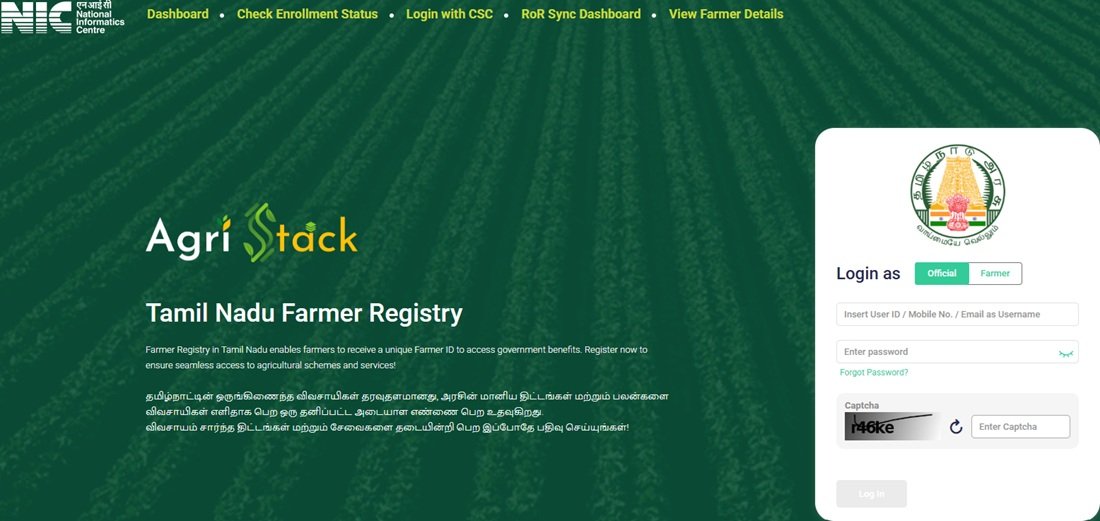
Farmers, officials and other authorised users can access the state’s AgriStack-related online facilities through the Tamil Nadu AgriStack Farmer Registry Portal. The portal displays options such as Official Login, Farmer Login, Dashboard, Login with CSC, Check Enrollment Status, View Farmer Details and RoR Sync Dashboard.
Tamil Nadu also operates the GRAINS platform, which integrates farmer, land and crop registries. The Agriculture Department separately lists the AgriStack Farmer Registry (Sahayak TN mobile App) among its important online resources. These platforms and tools form part of the state’s wider digital agriculture ecosystem.
In this guide, we explain the Tamil Nadu AgriStack framework, the official portal, its login facilities, dashboard, RoR Sync reports, GRAINS platform and other related digital resources. The focus is on understanding the portal and its available facilities rather than repeating the detailed Farmer Registry registration process.
Key Highlights of Tamil Nadu AgriStack Portal
Tamil Nadu AgriStack Portal: Overview | |
|---|---|
| Initiative | AgriStack |
| State | Tamil Nadu |
| Implementing Government | Government of Tamil Nadu |
| Related Department | Agriculture and Farmers Welfare Department |
| Dedicated Portal | Tamil Nadu Farmer Registry Portal |
| Portal URL | tnfr.agristack.gov.in |
| Login Options | Official and Farmer |
| CSC Facility | Login with CSC |
| Dashboard | Enrollment and district-level information |
| Data Synchronisation | RoR Sync Dashboard |
| Related Digital Platform | GRAINS |
| Related Mobile App | Sahayak TN mobile App |
| Official Website | Open Tamil Nadu AgriStack Portal |
What Is AgriStack in Tamil Nadu?
AgriStack is a digital agriculture initiative that aims to organise important farmer-related information and connect it with land and crop records. It forms part of the government’s effort to build a more structured digital system for agricultural services, planning and scheme delivery.
In Tamil Nadu, the state has developed its digital agriculture ecosystem through platforms such as GRAINS (Grower Online Registration of Agriculture Input System) and the dedicated Farmer Registry portal. These systems support the collection, organisation and integration of agricultural information.
The Government of India’s AgriStack framework identifies three important components:
- Farmers’ Registry: Maintains digital farmer identities and related farmer information.
- Geo-referenced Village Maps: Connects land information with geographical boundaries and maps.
- Crop Sown Registry: Records information about crops cultivated by farmers through digital crop surveys.
Tamil Nadu’s GRAINS platform also describes three core registries: the Unified Farmer Database, Geo-referencing of Land Parcels and Digital Crop Survey. These components help create a connected agricultural information system.
The state’s digital agriculture initiative aims to support better data management, agricultural monitoring and coordination between departments. It can also help government agencies use organised information while planning and implementing farmer-oriented services.
Farmers who want to understand the separate Farmer Registry process can read our detailed guide on the Farmer Registry Tamil Nadu initiative.
Official Tamil Nadu AgriStack Portal
Tamil Nadu provides a dedicated online interface under the AgriStack domain. The portal displays the name Tamil Nadu Farmer Registry and provides access to several online facilities for farmers and authorised users.
Users can visit the portal to access account login, enrollment-related information, farmer details and dashboard facilities. The portal also provides a separate RoR Sync Dashboard that displays land record synchronisation information and administrative reports.
The homepage displays information in both English and Tamil. It also provides separate login options for Official and Farmer accounts.
Official Portal: https://tnfr.agristack.gov.in/farmer-registry-tn/#/
How to Open the Tamil Nadu AgriStack Portal?
Users can access the official portal through a mobile phone, laptop or desktop computer. Follow these steps:
- Open an internet browser on your device.
- Visit the official Tamil Nadu AgriStack portal at tnfr.agristack.gov.in.
- Wait for the homepage to load.
- Check the AgriStack and Tamil Nadu Farmer Registry branding.
- Review the available menu options and login facilities.
- Select the service or dashboard you want to access.
Always check the website address before entering your mobile number, password or Aadhaar-related information. Use the official government portal rather than an unknown third-party website.
Services and Facilities Available on Tamil Nadu AgriStack Portal
The dedicated portal provides access to different facilities through its homepage. These options help users navigate the available account, dashboard and information services.
| Portal Facility | Purpose |
|---|---|
| Dashboard | Displays enrollment indicators and district-level information. |
| Official Login | Provides account access for authorised officials. |
| Farmer Login | Provides the Self-Login facility for farmers with portal accounts. |
| Login with CSC | Provides a separate CSC login option on the homepage. |
| Check Enrollment Status | Allows users to check enrollment status through Aadhaar Number or Farmer ID. |
| View Farmer Details | Provides an Aadhaar-based search facility with OTP verification. |
| Create New User Account | Allows eligible users to create an account for Self-Login access. |
| RoR Sync Dashboard | Displays land record synchronisation figures, filters and administrative reports. |
How to Login to Tamil Nadu AgriStack Portal?
The Tamil Nadu AgriStack portal provides separate login options for officials and farmers. Users can select the relevant account type on the homepage and enter their registered login details.
Follow these steps to access the login facility:
- Open the official Tamil Nadu AgriStack Portal.
- Locate the login section on the homepage.
- Select the appropriate login type: Official or Farmer.
- Enter your registered mobile number.
- Enter your account password.
- Use the Show option if you want to check the password entered in the field.
- Enter the displayed CAPTCHA.
- Click the Log In button to proceed.
After successful authentication, the portal will process your login request. The available facilities may depend on your account type and the permissions assigned to your account.
Official Login
The Official Login option is available for authorised users who need to access the portal through an official account. Select Official on the login page and enter the registered mobile number, password and CAPTCHA.
Farmer Login
Farmers can select the Farmer option to access the Self-Login facility. They need to enter their registered mobile number, account password and the displayed CAPTCHA to submit the login request.
Forgot Password Facility
The homepage also displays a Forgot Password option. Users who cannot access their accounts can select this option and follow the instructions displayed by the portal. The exact password recovery process depends on the instructions available on the official website.
How to Create a New User Account on Tamil Nadu AgriStack Portal?
The Tamil Nadu portal provides a Create New User Account option for farmers who need to activate their Self-Login access.
The homepage displays a specific instruction for farmers whose Farmer Registry was created through CSC or Camp Mode. These farmers must first complete a one-time portal account creation process before they can log in through the Self-Login facility.
Follow these basic navigation steps:
- Visit the official Tamil Nadu AgriStack Portal.
- Locate the Create New User Account option on the homepage.
- Click the option to open the account creation page.
- Complete the one-time registration process according to the instructions displayed on the page.
- Follow the portal’s verification instructions to activate your account.
- Return to the homepage and select Farmer Login to access Self-Login.
Direct Link: Create New User Account
Important: The one-time account creation instruction specifically applies to farmers whose Farmer Registry was created through CSC or Camp Mode. This portal account activation process is different from the original Farmer Registry enrollment process.
Dashboard of Tamil Nadu AgriStack Portal
The Tamil Nadu AgriStack portal provides a separate Dashboard option on its homepage. Users can open this section to view enrollment-related indicators and district-level information.
The dashboard brings several important figures together on one page. It displays information about PM-KISAN beneficiaries, total enrollment, approved Farmer IDs and pending cases. It also provides district-level enrollment sections.
How to Open the AgriStack Dashboard?
- Visit the official Tamil Nadu AgriStack website.
- Click the Dashboard option in the main menu.
- The portal will open the dashboard page.
- Review the available enrollment indicators.
- Scroll down to view enrollment mode and district-level information.
Direct Link: Open Tamil Nadu AgriStack Dashboard
Information Available on the Dashboard
The dashboard displays the following indicators:
| Dashboard Indicator | What It Represents |
|---|---|
| PM-KISAN Beneficiaries | Number of PM-KISAN beneficiaries displayed on the dashboard. |
| Total Enrollment Till Yesterday | Total enrollment recorded up to the previous day. |
| Enrollment as a % of PM-KISAN Beneficiaries | Percentage displayed by the portal against PM-KISAN beneficiaries. |
| Approved Farmer IDs | Number of Farmer IDs shown as approved. |
| FID as a % of PM-KISAN Beneficiaries | Percentage of approved Farmer IDs displayed by the portal. |
| Enrollment Pending Farmer ID Generation and Approval | Number of cases shown as pending for Farmer ID generation and approval. |
| Today’s Enrollment Counts via Enhanced Name Matching | Daily enrollment count displayed under enhanced name matching. |
| Total Today’s Enrollment | Total enrollment count displayed for the current day. |
The dashboard also contains sections titled Enrollment Mode, Farmer Enrollment – Top 5 Districts and Farmer Enrollment – Bottom 5 Districts. These sections provide additional information about enrollment patterns and district-level performance.
How Often Does the Dashboard Refresh?
The dashboard displays a note stating that its data gets refreshed every five minutes. Therefore, the figures may change when users revisit the page.
Users should also understand that the dashboard displays different enrollment stages separately. Total Enrollment Till Yesterday, Approved Farmer IDs and pending cases do not represent the same measurement. Read each indicator according to its displayed label.
RoR Sync Dashboard on Tamil Nadu AgriStack Portal
The Tamil Nadu AgriStack portal also provides a separate RoR Sync Dashboard. RoR stands for Record of Rights and refers to land record information. The dashboard displays administrative information related to land record synchronisation and data operations.
Unlike the main dashboard, which focuses on enrollment indicators, the RoR Sync Dashboard provides information about historical and live data movement, record updates and related administrative reports.
Users can also apply filters to view information according to district, sub-district, village and date range.
How to Open the RoR Sync Dashboard?
- Open the official Tamil Nadu AgriStack website.
- Select RoR Sync Dashboard from the homepage menu.
- The portal will open the RoR synchronisation dashboard.
- Review the administrative figures displayed on the page.
- Select a District, Sub-District or Village to apply location-based filters.
- Choose the required From and To dates.
- Click Apply to view information according to the selected filters.
Direct Link: Open Tamil Nadu RoR Sync Dashboard
Information Available on RoR Sync Dashboard
The dashboard displays several indicators related to data synchronisation and administrative activities.
| Indicator | What It Shows |
|---|---|
| Total Districts | Number of districts covered in the dashboard. |
| Total Sub-Districts | Number of sub-districts recorded in the system. |
| Total Villages | Number of villages covered in the displayed data. |
| History Data Pulled | Number of historical records pulled by the system. |
| Data Deleted | Number of records shown as deleted. |
| Data Inserted | Number of records shown as inserted. |
| Actions on SFDB Unified Table | Number of actions recorded on the SFDB Unified Table. |
| Incremental Farmer IDs Pushed | Number of incremental Farmer IDs pushed, as displayed by the dashboard. |
| Live Data Pulled | Number of live records pulled by the system. |
Reports Available on RoR Sync Dashboard
The portal lists several reports that provide more detailed information about data synchronisation and related activities.
- Data Pulled: History API vs Live API: Displays a comparison of data pulled through the History API and Live API.
- Data Deleted: Breakdown by Reason: Provides a reason-wise breakdown of deleted records.
- Actions on SFDB Unified Table: Displays actions recorded on the unified table.
- Farmer Transition Matrix: Shows farmer category transition information. The supplied dashboard view displays a district-specific heading for Chennai.
- Data Inserted: District Wise Breakdown: Displays district-wise information about inserted records, along with sub-district and village counts.
- Incremental Farmer IDs Pushed: Provides information for 30-day, 15-day and 7-day periods.
District-Wise Data on RoR Sync Dashboard
The RoR Sync Dashboard also displays a district-wise table. It includes district names, the number of sub-districts, villages and records inserted.
This section helps users review the information recorded at the district level. The figures may change as the system processes new information, so users should visit the live dashboard for the latest displayed data.
Other Facilities on Tamil Nadu AgriStack Portal
Apart from its login and dashboard sections, the portal provides additional facilities for accessing enrollment-related information and farmer details.
Check Enrollment Status
The portal provides a Check Enrollment Status option. Users can select Aadhaar Number or Farmer ID as the search method.
When users select Aadhaar Number, the page displays an OTP facility. The portal states that it sends the OTP to the mobile number linked with Aadhaar. Users must follow the verification instructions displayed on the page.
Users who select Farmer ID should follow the fields and instructions shown by the portal.
Direct Link: Check Enrollment Status
View Farmer Details
The View Farmer Details option provides an Aadhaar-based search facility. The page displays a field titled Search By Farmer Aadhaar Number and an OTP facility for verification.
Users should enter the required information and follow the on-screen verification instructions. They should never share their Aadhaar OTP or other authentication details with an unauthorised person.
Direct Link: View Farmer Details
Login with CSC
The homepage displays a Login with CSC option for users accessing the portal through a Common Service Centre. Users can select this option to proceed to the CSC login facility.
The portal does not provide the complete CSC authentication steps in the homepage information reviewed for this guide. Therefore, users should follow the instructions displayed on the official website instead of relying on unverified login directions.
GRAINS Portal and Its Role in Tamil Nadu AgriStack
Tamil Nadu operates GRAINS, which stands for Grower Online Registration of Agriculture Input System. The state describes GRAINS as a digital platform that aims to integrate different parts of the agricultural value chain, from production to marketing.
The official GRAINS website identifies three core registries:
- Unified Farmer Database: Provides a centralised database of farmer-related information for authorised stakeholders.
- Geo-referencing of Land Parcels: Supports the mapping and geographical identification of agricultural land parcels.
- Digital Crop Survey: Supports the collection and organisation of crop-related information through digital survey systems.
GRAINS also describes its broader objectives, including farmer identification and validation through data exchange, crop monitoring, agricultural data standardisation, market access and integration of existing agriculture-related platforms through APIs.
The platform also identifies several government departments and agricultural institutions as stakeholders. This reflects its wider role in connecting agricultural information across different parts of the state administration.
Official Website: https://grains.tn.gov.in/index.html
Difference Between TN AgriStack Portal and GRAINS
The TN Farmer Registry portal and GRAINS are related to Tamil Nadu’s digital agriculture ecosystem, but their displayed roles are different. The dedicated TNFR portal provides specific login, enrollment and dashboard facilities, while GRAINS describes the broader integration of farmer, land and crop information.
| Basis | TN AgriStack Farmer Registry Portal | GRAINS Portal |
|---|---|---|
| Official Website | TNFR Portal | GRAINS Portal |
| Main Role | Provides access to Farmer Registry-related online facilities. | Supports integration of farmer, land and crop information. |
| Displayed Facilities | Login, status checking, farmer details and dashboards. | Unified Farmer Database, land parcel georeferencing and Digital Crop Survey. |
| Dashboard Information | Enrollment indicators and RoR synchronisation reports. | GRAINS and Crop Survey dashboard references. |
| Broader Purpose | Provides access to specific portal services. | Supports agricultural data integration and planning. |
Therefore, users looking for TN AgriStack portal login, enrollment-related facilities or the RoR Sync Dashboard should visit the dedicated TNFR portal. Users looking for information about the state’s wider integrated agricultural data platform can visit GRAINS.
Sahayak TN Mobile App and AgriStack
The Tamil Nadu Department of Agriculture and Farmers Welfare lists the AgriStack Farmer Registry (Sahayak TN mobile App) among its important links. The Department’s website therefore provides an official reference to this mobile application as part of its AgriStack-related resources.
Users can visit the official Agriculture Department website to locate the AgriStack Farmer Registry (Sahayak TN mobile App) link. The department website also lists other agricultural digital resources and services.
Official Department Website: Tamil Nadu Department of Agriculture and Farmers Welfare
The detailed functions, login process and available options of the Sahayak TN mobile App should be checked through the official app or department instructions. This guide does not assume that every facility available on the web portal is also available through the mobile application.
Important Links Available on Tamil Nadu AgriStack Portal
The following table provides direct links to the main AgriStack-related websites and facilities in Tamil Nadu.
| Service or Resource | Direct Link |
|---|---|
| Official Tamil Nadu AgriStack Portal | Click Here |
| AgriStack Dashboard | Click Here |
| Check Enrollment Status | Click Here |
| RoR Sync Dashboard | Click Here |
| View Farmer Details | Click Here |
| Create New User Account | Click Here |
| GRAINS Portal | Click Here |
| Tamil Nadu Agriculture Department | Click Here |
| Tamil Nadu Department of Horticulture | Click Here |
Contact Details in Case of Help Needed
Users who face difficulty while accessing the Tamil Nadu AgriStack portal should first check the official website for the latest instructions and available support information.
The TNFR homepage information reviewed for this guide does not display a verified portal-specific helpline number, support email address or grievance contact. Therefore, we are not listing an unverified phone number or email address.
For department-level information, users can visit the Tamil Nadu Department of Agriculture and Farmers Welfare website. They can also refer to the official GRAINS Portal for information about the state’s integrated agricultural data platform.
Conclusion
Tamil Nadu’s AgriStack initiative forms part of the state’s effort to organise farmer, land and crop-related information through digital systems. The dedicated TN Farmer Registry portal provides access to important online facilities, including Official and Farmer Login, CSC Login, enrollment information, farmer details and dashboard services.
The RoR Sync Dashboard provides another important facility by displaying land record synchronisation indicators, administrative filters and reports. Alongside this portal, GRAINS supports the wider integration of farmer, land and crop registries, while the Agriculture Department also lists the Sahayak TN mobile App as an AgriStack-related resource.
Users should visit the relevant official website for the facility they need and follow the instructions displayed there. For portal login and dashboard services, visit the official Tamil Nadu AgriStack Farmer Registry Portal.
Official Government Sources
- Tamil Nadu AgriStack Farmer Registry Portal
- Tamil Nadu GRAINS Portal
- Tamil Nadu Department of Agriculture and Farmers Welfare
- Tamil Nadu Department of Horticulture and Plantation Crops
- Tamil Nadu IT and Digital Services Policy Note 2025-26
- Government Order on GRAINS
- Government of India AgriStack Farmer Registry FAQs
Frequently Asked Questions (FAQs)
Ans. The dedicated Tamil Nadu AgriStack Farmer Registry Portal is available at https://tnfr.agristack.gov.in/farmer-registry-tn/#/. It provides access to login, dashboard and other Farmer Registry-related facilities.
Ans. AgriStack supports the organisation and integration of farmer, land and crop-related information. It aims to strengthen digital agriculture services, data management and agricultural planning.
Ans. Visit the official TNFR website at tnfr.agristack.gov.in. The homepage provides access to login options, the dashboard, enrollment status and other available facilities.
Ans. The portal provides separate Official and Farmer login options. Users need to enter their registered mobile number, password and CAPTCHA.
Ans. Yes. The homepage displays a Login with CSC option for users accessing the portal through a Common Service Centre.
Ans. The dashboard displays enrollment indicators such as PM-KISAN beneficiaries, total enrollment, approved Farmer IDs, pending cases and district-level enrollment information.
Ans. The dashboard displays a note stating that its data gets refreshed every five minutes.
Ans. The RoR Sync Dashboard displays administrative information related to land record synchronisation. It includes location and date filters, data movement indicators and reports.
Ans. The dashboard lists reports related to historical and live data, deleted records, SFDB Unified Table actions, Farmer Transition Matrix, district-wise inserted data and incremental Farmer IDs pushed over different periods.
Ans. GRAINS stands for Grower Online Registration of Agriculture Input System. It is a digital agriculture platform that integrates farmer, land and crop-related information.
Ans. The official GRAINS website identifies the Unified Farmer Database, Geo-referencing of Land Parcels and Digital Crop Survey as its three core registries.
Ans. No. The dedicated TNFR portal provides specific login, enrollment and dashboard facilities, while GRAINS describes the broader integration of farmer, land and crop information in Tamil Nadu.
Ans. The Tamil Nadu Department of Agriculture and Farmers Welfare lists the AgriStack Farmer Registry (Sahayak TN mobile App) among its important links. Users can visit the department’s official website for the related resource.
Ans. Yes. The portal provides a Check Enrollment Status facility with Aadhaar Number and Farmer ID as available search options.
Ans. The official Tamil Nadu GRAINS website is https://grains.tn.gov.in/index.html.

Tabassum is a government schemes researcher and writer with 5 years of experience tracking Central and State welfare scheme programmes across India. She has covered 500+ schemes spanning agriculture, women welfare, education, and housing, helping lakhs of beneficiaries understand their entitlements in simple language.