The CG AgriStack Portal is the online platform for accessing Chhattisgarh’s Farmer Registry services and related agricultural records. It provides separate options for farmer login, CSC access, enrollment status checking, Jansamarth KCC status, farmer details and Record of Rights (RoR) synchronization reports. Farmers and authorised users can visit the portal to access the service relevant to their requirements.
The portal also provides a dashboard that displays enrollment figures, approved Farmer IDs, pending cases and district-wise enrollment information. Its RoR Sync Dashboard presents land-record integration reports with district, sub-district, village and date filters. These facilities make the CG AgriStack Portal useful for checking portal information without navigating through several unrelated services.
Users who want to access the portal can visit cgfr.agristack.gov.in. This guide explains the available sections, login options, status-check facilities, dashboard reports and important links. For a detailed explanation of the registration process itself, read our separate guide on Farmer Registry Chhattisgarh.
CG AgriStack Portal: Key Highlights
| Particular | Details |
|---|---|
| Portal Name | Chhattisgarh Farmer Registry (CGFR) |
| Platform | AgriStack |
| State | Chhattisgarh |
| Official Portal | CG AgriStack Portal |
| Main Login Options | Official and Farmer |
| CSC Facility | Login with CSC |
| Enrollment Services | Check Enrollment Status and View Farmer Details |
| KCC Facility | Check Jansamarth KCC Status |
| Reporting Facility | Dashboard and RoR Sync Dashboard |
| Account Creation | Create New User Account |
| Data Refresh | The dashboard displays a notice stating that its data refreshes every 5 minutes. |
The Chhattisgarh government identifies AgriStack as a digital agricultural database that brings farmer identity and land-related information onto a common platform. The state has also connected its Unified Farmer Portal with AgriStack for agricultural registration-related work. You can read the Official Chhattisgarh government announcement for further background.
Services Available on Chhattisgarh AgriStack Portal
The CG AgriStack Portal provides different sections for checking enrollment information, accessing farmer records and viewing administrative reports. Each option serves a separate purpose. Users should select the relevant section instead of treating every facility as a registration or login service.
1. Dashboard
The Dashboard displays important figures related to Farmer Registry enrollment in Chhattisgarh. It includes PM-KISAN beneficiary figures, total enrollment, approved Farmer IDs, pending cases and district-wise enrollment information.
It also provides an overview of today’s enrollment and enrollment through enhanced name matching. The portal displays a notice that dashboard data refreshes every five minutes.
2. Check Enrollment Status
This option allows users to check enrollment status against an Aadhaar Number or Farmer ID. When users select Aadhaar Number, the portal sends an OTP to the mobile number linked with Aadhaar for verification.
3. Login with CSC
The homepage provides a separate Login with CSC option. It is intended for access through the Common Service Centre login facility. Users should follow the authentication instructions displayed by the portal.
4. Check Jansamarth KCC Status
This section provides a separate facility to check Jansamarth KCC status. Users can select Aadhaar Number or Farmer ID under the Check Status Against option. Aadhaar-based verification requires an OTP sent to the mobile number linked with Aadhaar.
5. RoR Sync Dashboard
The RoR Sync Dashboard displays reports related to Record of Rights (RoR) data synchronization and Farmer Registry integration. Users can apply location and date filters to view different reports, including data pulled, inserted, deleted and incremental Farmer IDs pushed.
6. View Farmer Details
This section provides an Aadhaar-based facility to access farmer details. The portal displays a Search By Farmer Aadhaar Number option and uses OTP verification for access.
CG AgriStack Portal Login Process
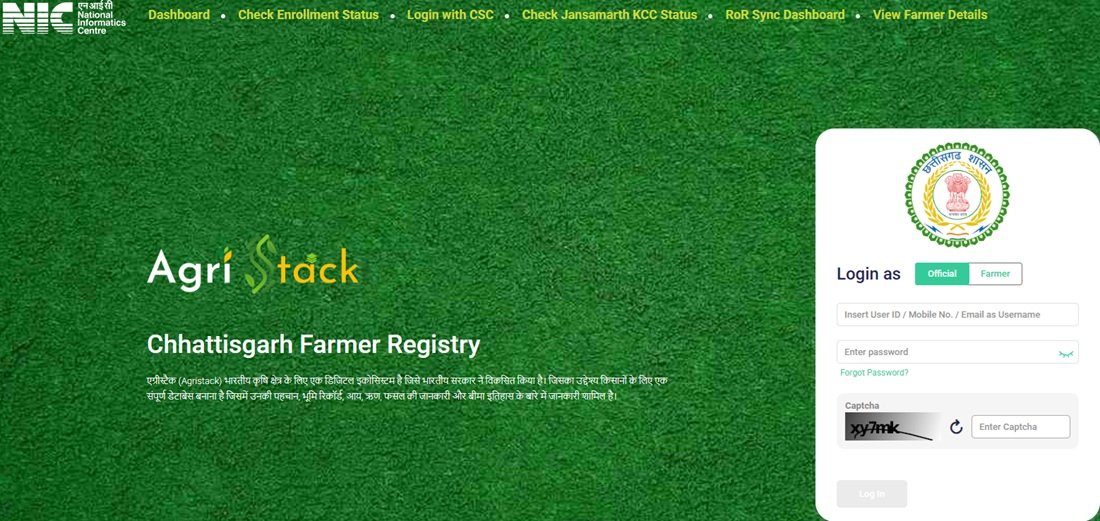
The CG AgriStack homepage provides separate login options for Official and Farmer users. It asks users to enter their registered mobile number and password, followed by CAPTCHA verification. The page also provides a Show option to view the entered password and a Forgot Password facility.
Follow these steps to access your account:
- Visit the official CG AgriStack Portal.
- Find the Login as section on the homepage.
- Select the appropriate option between Official and Farmer.
- Enter your registered mobile number in the required field.
- Enter your account password.
- Use the Show option if you want to check the password you entered.
- Enter the CAPTCHA characters displayed on the screen.
- Select Log In to continue.
Enter the same mobile number that you used while creating your portal account. If you cannot recall your password, select Forgot Password? and follow the instructions displayed on the portal.
The homepage also provides a separate CSC login option. Do not confuse this facility with the regular Farmer or Official login. Select the access option that applies to your account.
New User Account Registration on CGFR Portal
The CGFR homepage displays a Create New User Account option for users who need to activate their portal login. The notice specifically mentions farmers whose Farmer Registry was created through CSC or Camp Mode.
According to the portal notice, these users must complete a one-time account registration before logging in. This process activates their Self-Login access.
Follow the steps below:
- Open the CG AgriStack Portal homepage.
- Select Create New User Account.
- The portal will open the account creation page.
- Follow the registration and verification instructions displayed on the page.
- Complete the one-time registration process to activate Self-Login access.
- Return to the homepage and use the Farmer login option to access your account.
Create a New User Account on CGFR Portal
Important: The portal notice specifically connects this one-time account creation requirement with registrations completed through CSC or Camp Mode. It does not state that every farmer must create another account after registration. Follow the instructions shown for your account instead of creating duplicate registrations.
Farmer Registry CG: Enrollment Status Check
The Farmer Registry CG Status Check facility helps users check the enrollment status associated with their Aadhaar Number or Farmer ID. The portal provides both options under the Check Status Against section.
You can use the direct enrollment status page instead of searching through the homepage menus.
- Visit the Check Enrollment Status page.
- Find the Check Status Against section.
- Select Aadhaar Number or Farmer ID.
- If you select Aadhaar Number, enter the requested Aadhaar details.
- Complete the OTP verification. The portal sends the OTP to the mobile number linked with Aadhaar.
- Follow the instructions displayed on the screen to check the available enrollment information.
If you already have a Farmer ID, you can select the Farmer ID option instead of using Aadhaar-based verification. Enter the required information and follow the portal’s instructions.
Keep your Aadhaar-linked mobile number accessible when you choose Aadhaar verification. If you do not receive the OTP, check whether the mobile number linked with Aadhaar is active and try again after following the portal’s instructions.
This facility checks enrollment information. It is different from the View Farmer Details section, which provides a separate Aadhaar-based facility for accessing farmer details.
Jansamarth KCC Status Check on CGFR Portal
The CG AgriStack Portal also provides a dedicated Check Jansamarth KCC Status section. It allows users to access the status-check facility through Aadhaar Number or Farmer ID.
Follow these steps to open the service:
- Visit the CGFR homepage.
- Select Check Jansamarth KCC Status.
- Alternatively, open the direct Jansamarth KCC Status page.
- Under Check Status Against, select Aadhaar Number or Farmer ID.
- Enter the required details according to your selected option.
- For Aadhaar-based verification, enter the OTP sent to your Aadhaar-linked mobile number.
- Complete the verification and follow the instructions displayed by the portal.
The portal provides this service separately from the regular Farmer Registry enrollment status checker. Therefore, users looking for Jansamarth KCC information should open the dedicated KCC status section rather than the general enrollment status page.
The public interface identifies the available verification options. It does not provide a complete explanation of every possible KCC status or the internal processing of a KCC application. Users should follow the information displayed after verification.
CG AgriStack Dashboard: Features and Information
The CG AgriStack Dashboard provides an overview of Farmer Registry enrollment across Chhattisgarh. It displays beneficiary and enrollment figures, approved Farmer IDs, pending cases and district-level enrollment information.
Users can open the dashboard directly through the following link:
Information Displayed on the Dashboard
| Dashboard Indicator | Information Displayed |
|---|---|
| PM-KISAN Beneficiaries | Number of PM-KISAN beneficiaries shown on the dashboard. |
| Total Enrollment Till Yesterday | Total enrollment figure recorded up to the previous day. |
| Enrollment as a Percentage of PM-KISAN Beneficiaries | Enrollment percentage calculated against the displayed PM-KISAN beneficiary count. |
| Approved Farmer IDs | Number of Farmer IDs shown as approved. |
| FID as a Percentage of PM-KISAN Beneficiaries | Approved Farmer ID percentage against the displayed PM-KISAN beneficiary count. |
| Pending Farmer ID Generation and Approval | Number of cases awaiting Farmer ID generation and approval. |
| Today’s Enrollment Through Enhanced Name Matching | Enrollment count recorded through enhanced name matching on the current day. |
| Total Today’s Enrollment | Total enrollment count displayed for the current day. |
| Enrollment Mode | Dashboard section showing enrollment mode information. |
| Top 5 and Bottom 5 Districts | District-wise enrollment information for the highest and lowest five districts. |
Dashboard Figures: 21 November 2026
The dashboard information shared for 21 November 2026 displayed the following figures:
| Indicator | Displayed Figure |
|---|---|
| PM-KISAN Beneficiaries | 40,08,908 |
| Total Enrollment Till Yesterday | 43,91,703 |
| Enrollment as a Percentage of PM-KISAN Beneficiaries | 109.56% |
| Approved Farmer IDs | 43,88,752 |
| FID as a Percentage of PM-KISAN Beneficiaries | 109.56% |
| Pending Farmer ID Generation and Approval | 90 |
| Today’s Enrollment Through Enhanced Name Matching | 74 |
| Total Today’s Enrollment | 359 |
Note: These figures represent the dashboard snapshot shared for 21 November 2026. The portal states that dashboard data refreshes every five minutes, so the figures may change. Check the live dashboard for the latest information. The enrollment percentage can also exceed 100% because the dashboard compares enrollment figures with its displayed PM-KISAN beneficiary count.
District-Wise Enrollment Information
The dashboard includes two district-level sections: Farmer Enrollment – Top 5 Districts and Farmer Enrollment – Bottom 5 Districts. These sections help users compare enrollment activity across districts.
The dashboard also provides enrollment mode information. However, the figures and categories shown in these sections may change with the latest portal data. Users should check the live dashboard instead of relying on an old screenshot or previously published figures.
Chhattisgarh AgriStack RoR Sync Dashboard
The Chhattisgarh AgriStack RoR Sync Dashboard is a reporting section of the CGFR portal. It displays information related to the synchronization of Record of Rights (RoR) data and Farmer Registry records.
Users can open the report through the direct link below:
Open Chhattisgarh AgriStack RoR Sync Dashboard
Available Filters
The dashboard provides filters that help users view information for a selected geographical area and date range.
- District: Select the required district.
- Sub-District: Choose the relevant sub-district.
- Village: Select a village to narrow the report.
- From: Enter the starting date.
- To: Enter the ending date.
- Apply: Apply the selected filters to view the report.
The dashboard also displays a Last Updated date and time. Users should check this information to understand when the displayed report was last updated.
Important Indicators in the RoR Sync Dashboard
| Indicator | What It Shows |
|---|---|
| Total Districts | Number of districts included in the report. |
| Total Sub-Districts | Number of sub-districts covered by the displayed data. |
| Total Villages | Number of villages included in the report. |
| History Data Pulled | Count of historical data records pulled by the system. |
| Data Deleted | Number of records reported as deleted. |
| Data Inserted | Number of records inserted into the system. |
| Actions on SFDB Unified Table | Count of actions recorded on the SFDB Unified Table. |
| Incremental Farmer IDs Pushed | Number of incremental Farmer IDs pushed through the system. |
| Live Data Pulled | Count of records pulled through live data operations. |
Reports and Data Visualisations
Along with summary figures, the RoR Sync Dashboard displays several reports that provide a more detailed view of data synchronization.
- Data Pulled – History API vs Live API: Compares the data pulled through historical and live API operations.
- Data Deleted – Breakdown by Reason: Displays deleted records according to the reasons recorded in the report.
- Actions on SFDB Unified Table: Presents information about actions recorded on the unified table.
- Farmer Transition Matrix: Displays transitions between farmer categories, including Big, Small, Marginal and Landless.
- Data Inserted – District Wise Breakdown: Shows district-wise information about inserted records, sub-districts and villages.
- Incremental Farmer IDs Pushed: Provides time-based views for 30 days, 15 days and 7 days.
The Farmer Transition Matrix presents category-wise movement from one group to another. For example, it shows how records move between Big, Small, Marginal and Landless categories. The report also provides a district-wise breakdown of inserted records.
RoR Sync Dashboard Snapshot
The RoR Sync Dashboard information shared for 21 November 2026 displayed the following figures:
| Indicator | Displayed Figure |
|---|---|
| Total Districts | 33 |
| Total Sub-Districts | 251 |
| Total Villages | 21,711 |
| History Data Pulled | 5,94,962 |
| Data Deleted | 1,84,713 |
| Data Inserted | 77,370 |
| Actions on SFDB Unified Table | 3,00,610 |
| Incremental Farmer IDs Pushed | 99,04,062 |
| Live Data Pulled | 86,068 |
Note: These figures are from the portal snapshot shared for 21 November 2026. They are not permanent statistics. The report may change when users select another date range or location, and the portal updates its data.
District-Wise Data Inserted Report
The dashboard also provides a district-wise breakdown of inserted records. It displays the number of sub-districts, villages and records inserted for each district. This report helps users examine how data insertion is distributed across different parts of Chhattisgarh.
For example, the snapshot shared on 21 November 2026 included district entries such as Surguja, Raigarh, Janjgir-Champa, Mahasamund, Sakti, Korba, Balod, Rajnandgaon, Bilaspur, Bastar, Raipur and other districts. The live dashboard should be used for the latest district-wise figures.
For land-record-related information, users can also visit the official Chhattisgarh Bhuiyan Portal. Its AgriStack RoR Krishi Khasra Report separately displays the Farmer Registry and RoR integration status.
View Farmer Details on CGFR Portal
The View Farmer Details section provides a separate facility to search for farmer information using an Aadhaar number. The portal displays a Search By Farmer Aadhaar Number option and requires OTP-based verification.
Follow these steps to access the facility:
- Open the CG AgriStack Portal homepage.
- Select View Farmer Details.
- Alternatively, open the direct View Farmer Details page.
- Enter the Aadhaar number in the Search By Farmer Aadhaar Number field.
- Follow the OTP verification instructions displayed by the portal.
- Complete verification to proceed with the available farmer details facility.
Keep the mobile number linked with Aadhaar accessible because the process uses OTP verification. Do not share your Aadhaar OTP or other authentication details with an unauthorised person.
This section is different from Check Enrollment Status. The enrollment status page checks registration status, whereas View Farmer Details provides a separate Aadhaar-based access option for farmer information.
Important Links
Use the following direct links to open the main services of the Chhattisgarh AgriStack Portal. These links help users reach the required section without searching through the homepage.
| Service | Direct Link |
|---|---|
| CG AgriStack Portal Homepage | Open Portal |
| CG AgriStack Dashboard | View Dashboard |
| Check Enrollment Status | Check Status |
| Check Jansamarth KCC Status | Check KCC Status |
| RoR Sync Dashboard | View RoR Report |
| View Farmer Details | Open Farmer Details |
| Create New User Account | Create Account |
| Chhattisgarh Bhuiyan Portal | Open Bhuiyan |
| AgriStack RoR Krishi Khasra Report | View Integration Report |
Contact Details and Helpdesk
Farmers who face difficulty accessing AgriStack services can seek assistance through the official support channels mentioned by the Chhattisgarh government. The government has published AgriStack assistance numbers in its official announcements.
| Support Channel | Details |
|---|---|
| AgriStack Helpline | 1800-233-1033 |
| Local Assistance | Patwari or Agriculture Extension Officer |
| Government Information | Chhattisgarh Public Relations Department |
| Official Portal | CG AgriStack Portal |
The Chhattisgarh government mentioned helpline number 1800-233-1033 in an official announcement about AgriStack registration. An earlier government announcement also mentioned 1800-233-1030. Since official announcements have displayed different numbers, confirm the currently active helpline through the latest government notice before relying on either number.
You can also approach your local Patwari or Agriculture Extension Officer for assistance with relevant agricultural records and registration-related queries. For portal access issues, keep the exact error message and relevant reference details ready when requesting help.
Frequently Asked Questions (FAQs)
Ans. The CG AgriStack Portal is Chhattisgarh’s online Farmer Registry platform. It provides access to services such as farmer login, CSC login, enrollment status checking, Jansamarth KCC status, dashboard reports, RoR synchronization information and farmer details.
Ans. The official website is https://cgfr.agristack.gov.in/farmer-registry-cg/. Users can open the homepage to access the available services.
Ans. Open the official portal, select Official or Farmer under Login as, enter your registered mobile number and password, complete the CAPTCHA and select Log In.
Ans. It allows users to complete one-time account registration and activate Self-Login access. The portal specifically instructs farmers whose Farmer Registry was created through CSC or Camp Mode to create their account before logging in.
Ans. Yes. Open the Check Enrollment Status section and select Aadhaar Number or Farmer ID. If you choose Aadhaar Number, the portal sends an OTP to the mobile number linked with Aadhaar.
Ans. Yes. The Check Enrollment Status page provides a Farmer ID option under Check Status Against. Select it and follow the instructions displayed on the portal.
Ans. Open the Check Jansamarth KCC Status section and select Aadhaar Number or Farmer ID. Complete the required verification and follow the instructions displayed by the portal.
Ans. Yes. The Aadhaar-based enrollment status and Jansamarth KCC status options state that the OTP will be sent to the mobile number linked with Aadhaar. The View Farmer Details facility also uses OTP-based verification.
Ans. The dashboard displays PM-KISAN beneficiaries, total enrollment, approved Farmer IDs, pending Farmer ID generation and approval, today’s enrollment, enrollment mode and district-wise enrollment information.
Ans. The dashboard displays a notice stating that its data gets refreshed every five minutes. Therefore, its enrollment figures may change when users revisit the page.
Ans. The RoR Sync Dashboard is a reporting section that displays information related to Record of Rights data synchronization and Farmer Registry integration. It includes data pulled, inserted and deleted, incremental Farmer IDs pushed and other reports.
Ans. The dashboard provides District, Sub-District, Village, From and To filters. Users can select the required details and choose Apply to view the corresponding report.
Ans. Yes. Open View Farmer Details and enter the Aadhaar number in the Search By Farmer Aadhaar Number field. Complete the OTP verification instructions to proceed.
Ans. No. Check Enrollment Status helps users check their enrollment information using Aadhaar Number or Farmer ID. View Farmer Details provides a separate Aadhaar-based facility to access farmer details through OTP verification.
Ans. The Chhattisgarh government has published AgriStack helpline numbers in its official announcements. The number 1800-233-1033 appears in a later announcement, while an earlier notice mentions 1800-233-1030. Confirm the active number through the latest government notice. Farmers can also contact their local Patwari or Agriculture Extension Officer for assistance.

Tabassum is a government schemes researcher and writer with 5 years of experience tracking Central and State welfare scheme programmes across India. She has covered 500+ schemes spanning agriculture, women welfare, education, and housing, helping lakhs of beneficiaries understand their entitlements in simple language.